# How to install QBox on MT5 (Mac)

### Step 1

After downloading QBox, move the file from your downloads folder to your desktop.

### Step 2

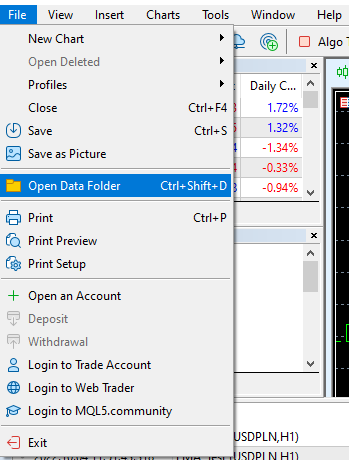
Open MT5 and go to "File -> Open Data Folder".

<figure><img src="https://1633035990-files.gitbook.io/~/files/v0/b/gitbook-x-prod.appspot.com/o/spaces%2FAlvExH8xPRZ9NcuZqE67%2Fuploads%2FymtiBmSm0ZfYbx0pxDt3%2Fimage.png?alt=media&#x26;token=074951dc-07b5-41c3-9420-8aab009692a0" alt=""><figcaption></figcaption></figure>

A new window should appear that looks like this:&#x20;

<figure><img src="https://1633035990-files.gitbook.io/~/files/v0/b/gitbook-x-prod.appspot.com/o/spaces%2FAlvExH8xPRZ9NcuZqE67%2Fuploads%2FcAKW7WZcNkytqtDmpuoi%2Fimage.png?alt=media&#x26;token=0411bf15-7027-4436-bbd7-d078c1ef98ab" alt=""><figcaption></figcaption></figure>

### Step 4

Click on the folder on the left side of the screen that says "My Mac Desktop".

### Step 5

Right-click and copy the .ex5 file.

Return to the folder "MQL5 → Experts → Advisors" and paste the .ex5 file.

Once that's done, you can now close both MT5 and the folder.

### Step 6

Now that you have QBox installed, re-open MetaTrader 5, click and drag QBox from the left onto your open charts.

A new pop-up will appear, check the "Allow algo trading" box.

Ensure Algo Trading on the top of your MT5 is also showing a green triangle.

If QBox is set up right, you should see a blue hat on the top right of your chart.

<figure><img src="https://1633035990-files.gitbook.io/~/files/v0/b/gitbook-x-prod.appspot.com/o/spaces%2FAlvExH8xPRZ9NcuZqE67%2Fuploads%2FchlxdV4ewEwWjrHGkXnN%2FLoading%20QBox%20onto%20charts.gif?alt=media&#x26;token=a2f139ab-3efe-4a90-a791-192d2822f368" alt=""><figcaption></figcaption></figure>

{% hint style="info" %}
If you do not see the blue hat, you may need to enable a few more settings on your MT5.&#x20;
{% endhint %}

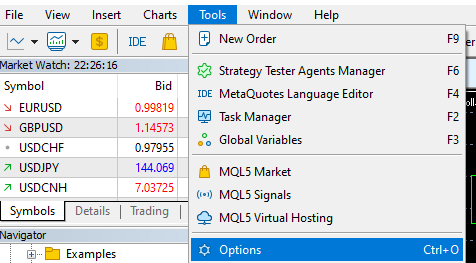
Go to "tools → options" on your MT5.

<figure><img src="https://1633035990-files.gitbook.io/~/files/v0/b/gitbook-x-prod.appspot.com/o/spaces%2FAlvExH8xPRZ9NcuZqE67%2Fuploads%2FIKtyu9KtkxCGrfgaZwAh%2Fimage.png?alt=media&#x26;token=3b9af7ac-808d-47fa-a40f-4faf4779c20a" alt=""><figcaption></figcaption></figure>

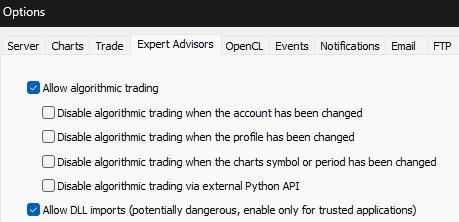
On the new pop-up, go to the "Expert Advisors Tab" and check the following options:

<figure><img src="https://1633035990-files.gitbook.io/~/files/v0/b/gitbook-x-prod.appspot.com/o/spaces%2FAlvExH8xPRZ9NcuZqE67%2Fuploads%2FkVgZKmOXht1TI2E8RHdJ%2Fimage.png?alt=media&#x26;token=04ca9736-ec27-418e-95d9-e2cd5dabfa39" alt=""><figcaption></figcaption></figure>

{% hint style="warning" %}
Please note that MT5 for Mac is known to be unstable at times. If you face issues, please always try to redownload a new MT5 from your relevant brokers' sites.&#x20;
{% endhint %}